Phone guide
Use your PCOC on Android with the groundinglab build of Primal, the popular open-source Nostr client.
The app download is on Apps. To make your PCOC on a computer, see the desktop guide. More guides are on the Help page.
Watch the video, or follow the short steps below.
-
Get the app
On Apps, download the debug APK. Side-load only. It is not on the Play Store. It is debug-signed with the debug key. You can also build it from source: app 3.5.50, commit
5a1d4f5f3,./gradlew :app:assembleAospDebug. Rebuildable from the commit; not bit-reproducible. That commit is on primal-pcoc main (#54, merged). Tagandroid-v3.5.50.- Download the APK.
- Copy it onto the phone if you downloaded it on a computer.
- Open the APK.
- If Android asks, allow this source to install apps.
- Confirm the install, then open the app.
-
Sign in, or create an account
Your PCOC belongs to this account's key. Open Accounts.
- To use a PCOC you made on the desktop, press Add an existing account. On Sign In, press Paste Your Key, paste the same nsec you used on the desktop, and press Sign In.
- To make a PCOC on this phone, you can also press Create a new account.
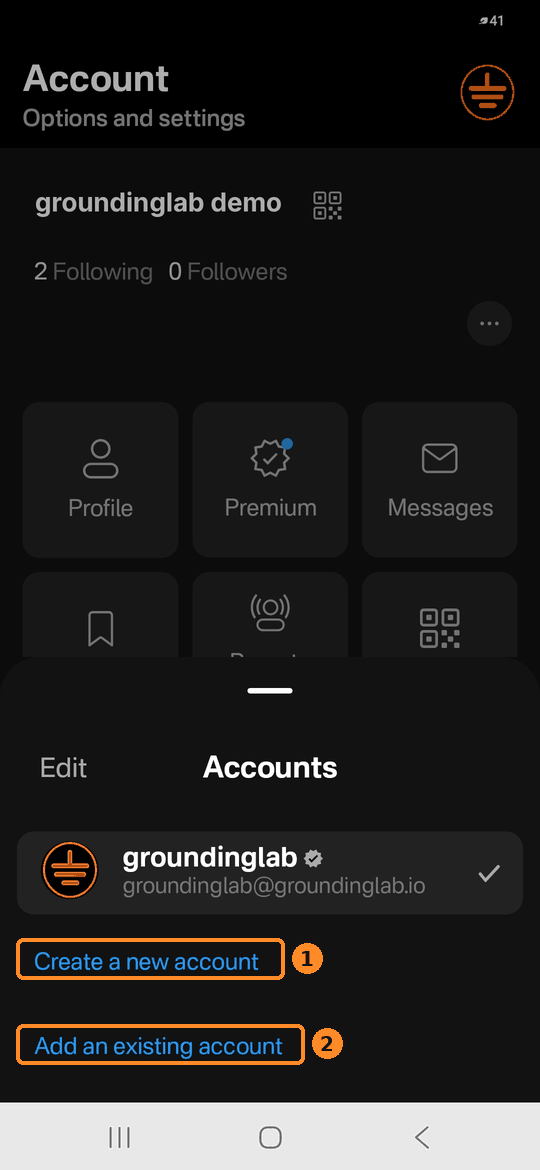
Create a new account (1), or Add an existing account (2). -
Open the PCOC menu
Tap your avatar to open the menu. Then tap the PCOC tile.
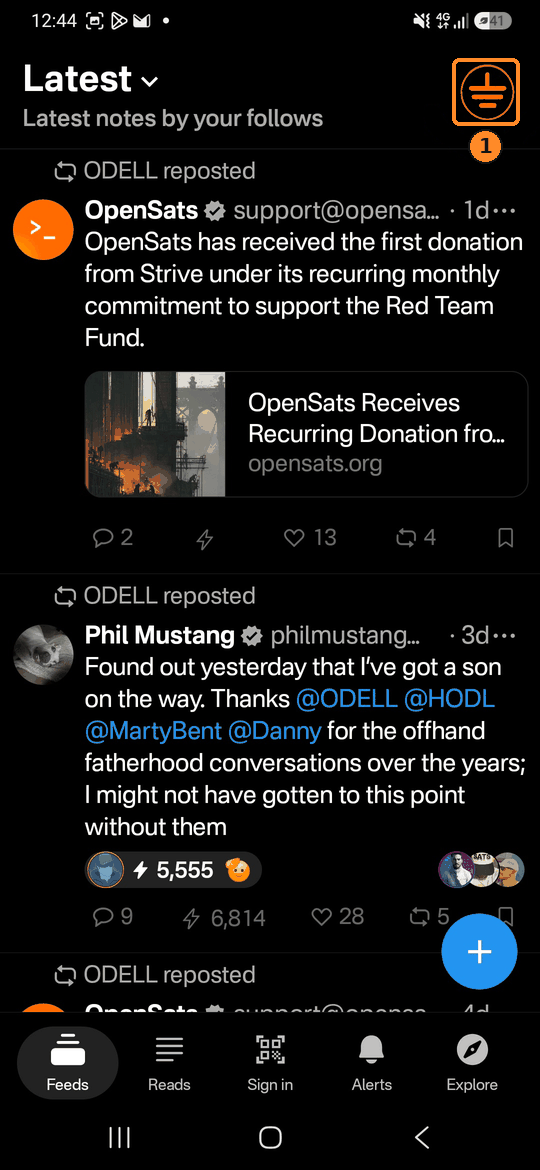
Your avatar (1). 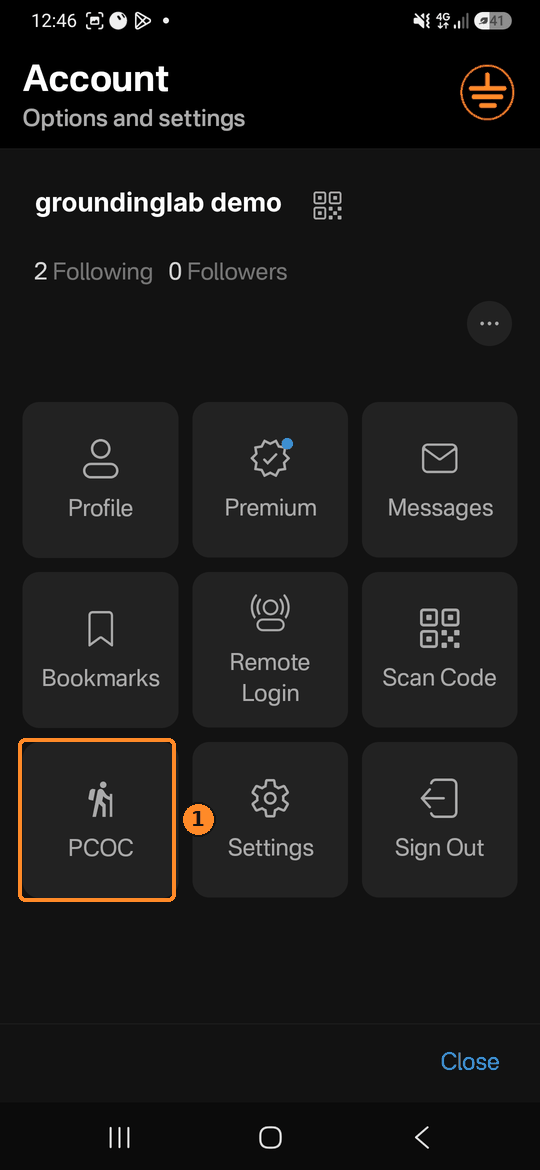
The PCOC tile (1). 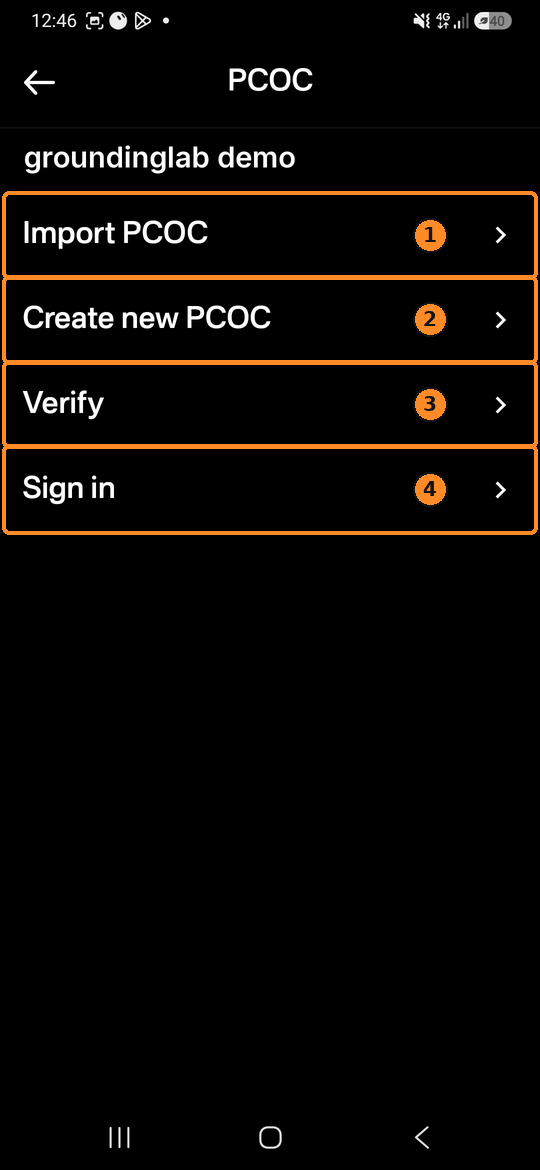
The PCOC menu: Import PCOC (1), Create new PCOC (2), Verify (3), Sign in (4). -
Get your PCOC onto the phone
There are three ways to do it.
One. Make it on the desktop, and send it to your phone. Press Send to my phone on the desktop. It arrives as a Nostr message to the same account, so the phone app must be signed in with the same nsec you used on the desktop, pasted into the app. A remote signer such as Amber cannot open the message. In the app, open Messages: when the message arrives, the app shows PCOC .cbor DM received. as a dialog, and as a notification with Approve and Dismiss if notifications are allowed for the app. Tap Approve to save it for sign-in. Dismiss stores nothing.
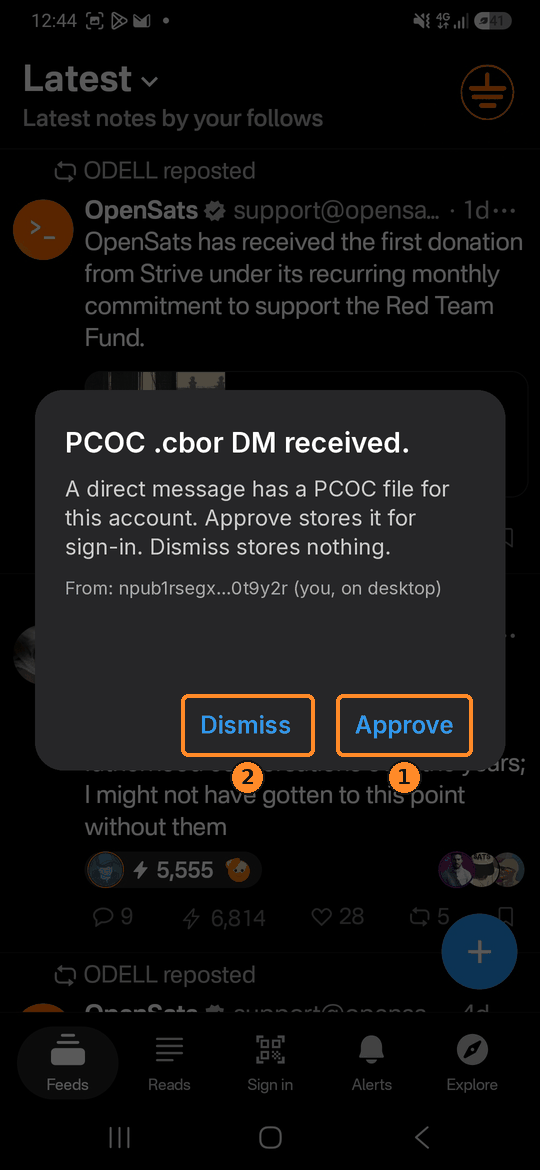
Approve (1) saves it. Dismiss (2) stores nothing. Two. Import the PCOC. Tap Import PCOC. Then tap Choose a file, and pick the PCOC,
pcoc.cbor. The screen says the PCOC is saved for this account.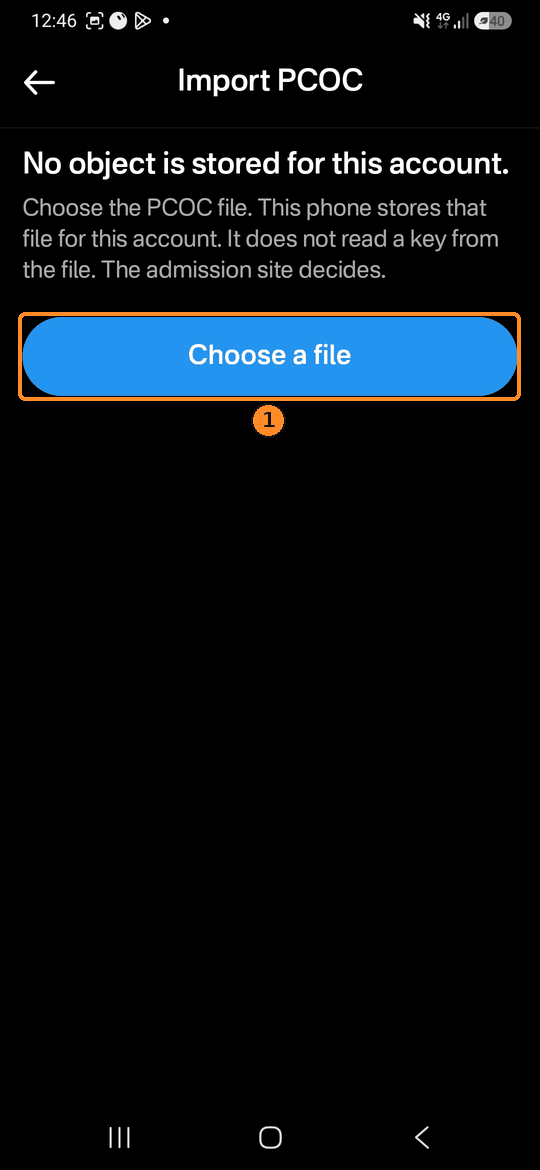
Choose a file (1). Three. Make it on the phone itself. Tap Create new PCOC, then Start hike. This needs a capable phone, like a modern mid-range Android. Making one takes at least 18 Bitcoin blocks, typically around three hours or more, but it varies. The device holds about 256 MiB the whole time. Stop ends it without writing a PCOC.
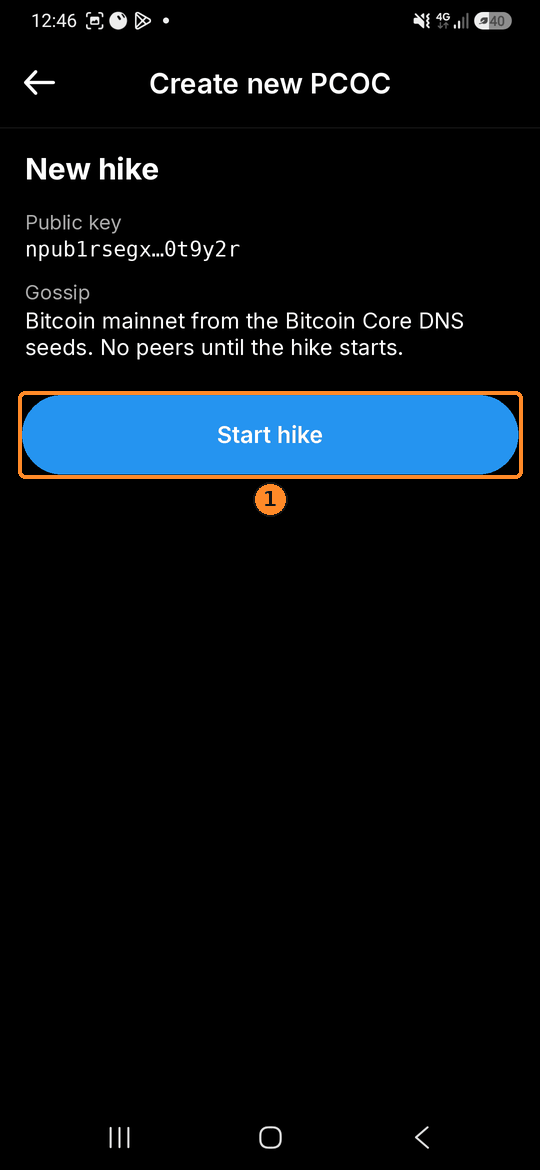
Start hike (1). 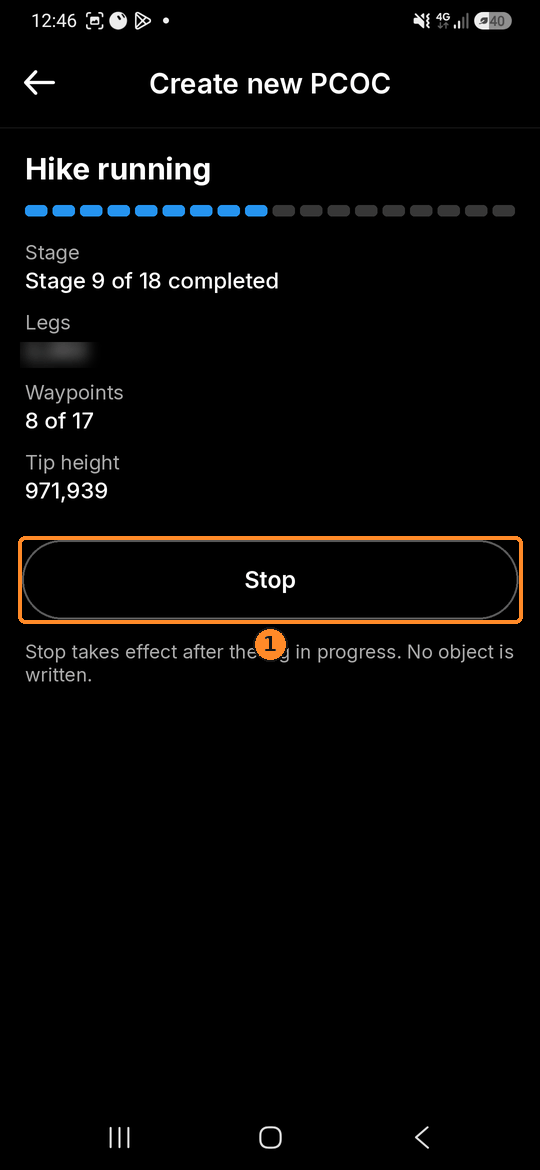
The hike running. Stop (1). When it's done, save the PCOC, or send it on.
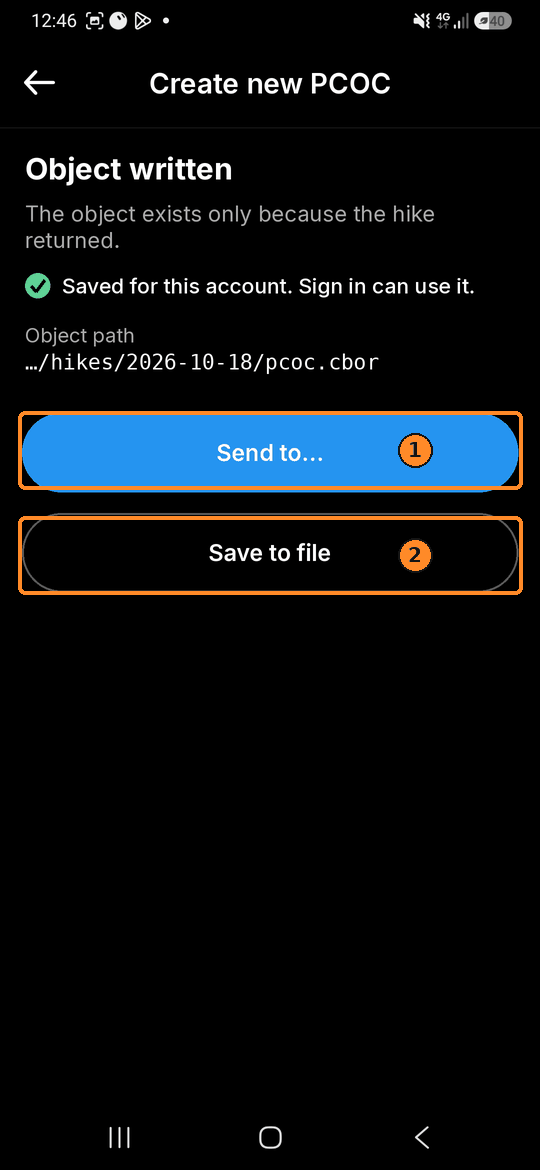
Send to… (1) or Save to file (2). -
Verify it, if you like
This step is optional. Tap Verify in the PCOC menu to measure the saved PCOC.
-
Sign in
On the website, open https://groundinglab.io/signin/ and press Sign in with PCOC. The page shows a QR code. It lasts about two minutes. New code starts another one. Copy code is the same link, if the camera cannot scan it.
On the phone, open the PCOC menu and tap Sign in. Or use the Sign in button on the main screen. On your opening sign-in, press Sign in on the short intro.
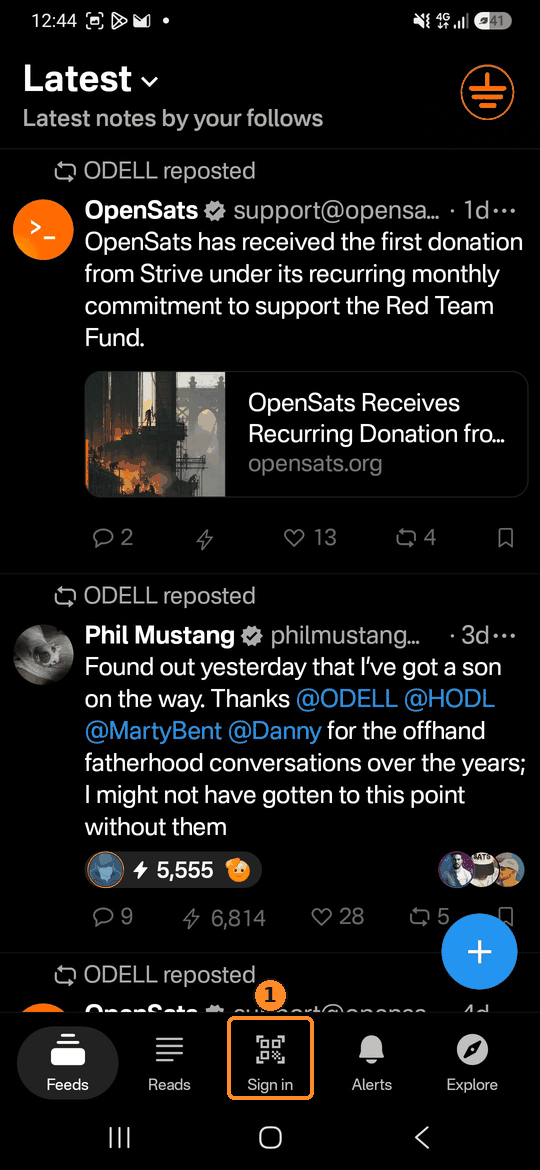
The Sign in button on the main screen (1). Then scan the code on the website, or tap Paste code and paste the link from Copy code. The screen says Signing in to
https://groundinglab.io. It signs with this account and the saved PCOC.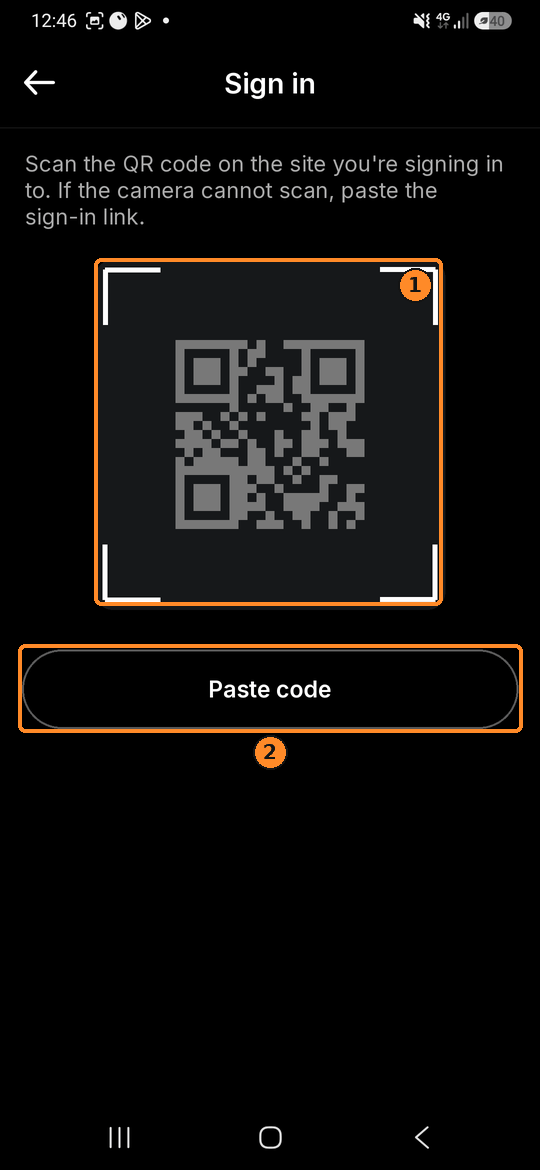
Scan the QR (1), or Paste code (2). When the phone says Sign-in submitted, the website opens Welcome and you are signed in. The phone also says Check the site you're signing in to. Press Close to leave that sheet. If this gate later refuses the PCOC, Welcome says so.
Troubleshooting
- No PCOC yet. The phone can say You need a PCOC first. Create one on this phone, or use Import PCOC. Go back to step 4.
- The PCOC could not be read. Import PCOC says the PCOC could not be read, and nothing was stored. Pick
pcoc.cborfrom the desktop data folder. A PCOC for a different login says This saved PCOC is for a different login. It was not sent. - Expired QR. The code lasts about two minutes. Press New code on the website and scan again. The phone can say Expired.
- Not a sign-in link. The phone says That is not a sign-in link. Nothing was sent. Scan the QR from Sign in with PCOC on this site, or paste that same link. Press Scan again to retry.